Installation
Installation Guide for Verity Mod & Bedrock Horror Addons
Follow this practical, safety-focused guide to install Verity Mod and other horror addons on Minecraft Bedrock. You will learn how to prepare worlds, import addon files, manage packs, avoid conflicts, and keep your saves protected.
Installation Overview
Adding Verity Mod or any horror-focused addon to Minecraft Bedrock introduces new AI-driven behaviors, creatures, and survival twists. A smooth installation depends on understanding how Bedrock handles addons, packs, and world settings before you start.
This guide walks through every major step of the process, from preparing backups and downloading trusted files to importing addons and testing them in-game. The goal is to keep your worlds safe while unlocking the full horror potential of Verity Mod and related addons from Art Mosaicly.
- Know where your worlds and settings live before you install.
- Install only from sources you trust and always scan downloads.
- Understand the difference between behavior packs and resource packs.
- Use backups and version awareness to avoid losing progress.
Step 1
Preparing Your Minecraft Bedrock World
Preparation is the most important stage when installing horror mods. Verity Mod and similar addons can dramatically change how your world behaves, so you should always be able to roll back to a clean state if something goes wrong.
Back up your existing worlds
Before installing any addon, export or copy the worlds you care about most. This ensures you can restore a pre-mod version if a horror addon corrupts a save, introduces bugs, or simply changes the atmosphere more than you expected.
- Identify survival worlds where you plan to test Verity or other horror mods.
- Use the in-game “export world” option or copy the world folder from your device’s storage, depending on your platform.
- Store backups in a clearly named folder with the date, such as Survival-Pre-Verity-Backup.
Check your Minecraft PE / Bedrock version
Horror addons are often designed around certain Bedrock versions. While Verity Mod aims to be flexible, differences between game versions can impact AI behaviors, performance, and stability.
- Open Minecraft and note the version number on the main menu.
- Compare it with the version mentioned on the addon’s download page or documentation.
- Avoid mixing many older addons with the latest Bedrock version without testing in a throwaway world first.
Use a controlled test world
Instead of activating Verity Mod on your main survival base right away, create a dedicated test world where you can safely observe its AI companion, new encounters, and difficulty spikes.
This approach lets you:
- Verify that the addon loads correctly.
- Check performance on your device.
- Decide whether you like the horror level before applying it to long-term saves.
Step 2
Downloading the Addon File
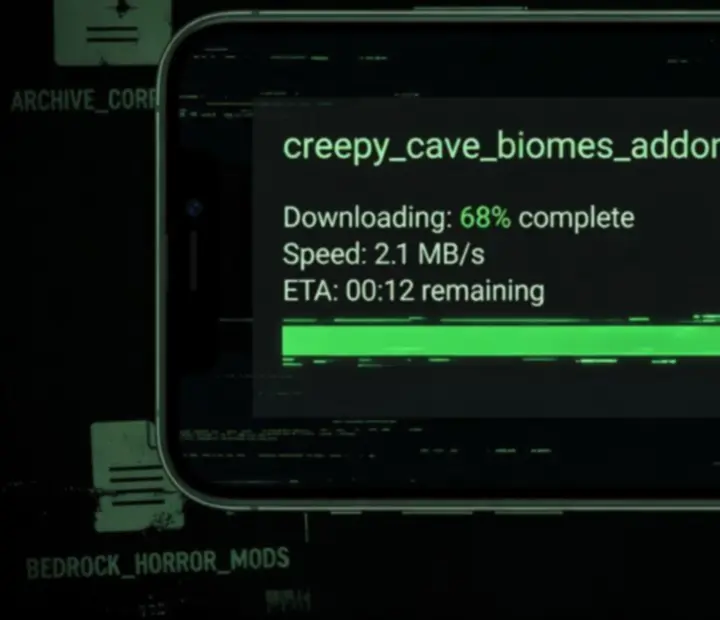
Safe, verified downloads are the foundation of stable horror modding. Always prioritize trusted sources when grabbing Verity Mod or any other Bedrock addon featured on Art Mosaicly.
Finding reliable Bedrock addon downloads
Look for download links that are clearly associated with the creator or a well-known community hub. Avoid pages that hide the actual file behind excess redirects, unrelated ads, or unclear buttons.
- Follow links from curated sources, editorial pages, or the creator’s official channels.
- Check that the file type matches a Bedrock addon format such as .mcaddon, .mcpack, or a well-organized .zip.
- Read the description to confirm that the addon targets Minecraft Bedrock, not Java Edition.
Security and file integrity
Even horror addons should never be a security risk. Treat any download like software and handle it with basic digital hygiene.
- Scan files with your device’s antivirus or security tools before opening them.
- Avoid executables or installers that claim to be required for a Bedrock addon.
- Keep a clean folder named Bedrock-Horror-Addons so you always know where your downloads live.
Avoid unofficial launchers or “unlock tools” that promise free access to every mod. Bedrock horror addons should be simple data packs, not programs that need deep system access.
Step 3
Importing Addons into Minecraft PE
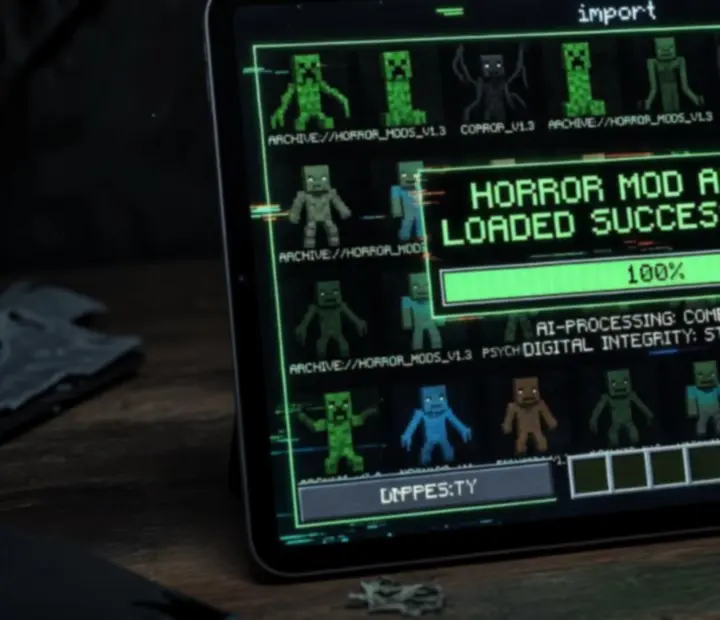
Once you have a trusted addon file, you need to import it into Minecraft PE so the game can register its behavior and resource packs. Different file types use slightly different flows, but all should lead to a clear “import successful” message.
Using .mcaddon or .mcpack files
Most Bedrock horror addons, including Verity Mod, are distributed as .mcaddon or .mcpack files. These are generally the easiest to install.
- Locate the downloaded file in your device’s file manager.
- Tap or open the file and choose to open it with Minecraft if prompted.
- Minecraft PE should launch automatically and begin importing the addon.
- Wait for an on-screen message that the import completed successfully.
Working with .zip archives
Some creators package horror addons in .zip archives containing separate behavior and resource pack folders.
- Extract the .zip into a temporary folder.
- Move the behavior and resource pack folders into the appropriate Minecraft directories for your platform.
- Restart Minecraft so it can detect and register the new packs.
If Minecraft displays an error during import, note the message and test with another addon to isolate whether the problem is with the file or your game installation.
Step 4
Behavior Packs vs Resource Packs
Bedrock addons usually include both behavior and resource packs. Understanding the difference helps you solve missing textures, broken AI, or silent creatures in horror mods.
Behavior Packs
Behavior packs control how entities act, spawn, and interact with the world. For Verity Mod, behavior data defines how the AI companion follows you, responds to threats, and triggers horror encounters.
- Enabled in the Behavior Packs tab of your world settings.
- Required for custom AI, enemy logic, and survival mechanics.
- Conflicts here can lead to broken or inactive horror creatures.
If a horror mod loads but nothing behaves differently, check that its behavior pack is at the top of the active list and not blocked by other addons.
Resource Packs
Resource packs handle the visuals, sounds, and UI elements that create the horror atmosphere. This includes eerie textures, ambient audio, and interface tweaks that support the mood of Verity Mod.
- Enabled in the Resource Packs tab of your world settings.
- Required for custom models, textures, sounds, and UI overlays.
- Conflicts can result in missing textures or default models.
If creatures appear invisible, untextured, or silent, verify that the associated resource pack is active, loaded above other global texture packs, and not reporting errors.
Keep pairs of behavior and resource packs from the same addon enabled together. Activating one without the other often causes partial or broken horror experiences.
Step 5
Configuring World Settings
Many horror addons, including AI-driven experiences like Verity Mod, depend on specific world options or experimental toggles. Configuring these settings properly ensures that custom entities and mechanics can run without being blocked.
Enable required experimental features
Some mods rely on experimental toggles to access newer Bedrock features. When creating or editing a world for Verity Mod:
- Open the target world’s settings before loading it.
- Check the creator’s documentation for any listed experiments to enable.
- Toggle only the experiments the addon specifically requests to reduce risk.
Adjust difficulty and game rules
Horror mods feel most effective when difficulty and survival constraints are tuned to support tension. Consider:
- Using Normal or Hard difficulty for more meaningful encounters.
- Disabling cheats in your primary horror world to preserve immersion.
- Customizing spawn settings only after testing the default behavior.
World selection and scope
Decide where horror should live in your Minecraft Bedrock experience. Some players dedicate specific worlds to intense horror themes and keep others relatively peaceful.
- Create a clearly named world such as Verity-Night-Run or Horror-Lab to avoid confusion.
- Limit the number of major addons running in a single world when first testing.
- Avoid stacking multiple heavy horror packs in worlds with large, long-term builds.
Experimental settings can make worlds more fragile across updates. Always pair world experiments with frequent backups, especially when you rely on them for intense horror scenarios.
Step 6
Addon Compatibility and Conflicts
Mixing horror addons like Verity, Man from the Fog, Cave Dweller, or SCP can create layered experiences—but also increases the chance of conflicts. Understanding how Bedrock resolves overlapping behavior helps you build stable horror setups.
Common conflict scenarios
- Multiple addons modify the same mob and override each other’s behaviors.
- Two packs redefine spawn rules, leading to either overcrowded or empty worlds.
- Heavy resource packs compete for model and texture slots, breaking visuals.
When several horror packs are active, Bedrock usually gives priority to the pack highest in the list. If something seems missing, another addon may be winning that conflict silently.
Prioritizing horror addons
To keep your experience consistent, decide which addon is the “main event” in each world and prioritize it in the pack order.
- Put Verity Mod’s behavior and resource packs at or near the top when it is the focus.
- Move secondary horror addons lower until you confirm they play nicely together.
- Test new combinations in a throwaway world before updating an ongoing save.
If your world feels empty or too quiet after adding several mods, try disabling all but one, then re-enable them one at a time until you find the conflict.
Step 7
Performance and Troubleshooting Basics
Horror mods can increase entity counts, AI complexity, and visual effects—all of which impact performance. A stable frame rate is essential for tense encounters and responsive survival gameplay.
Managing lag and crashes
When performance drops after enabling Verity Mod or multiple horror addons, adjust your configuration instead of pushing through constant stutter.
- Reduce the number of active addons, especially the heaviest ones.
- Lower your render distance to limit how many entities load at once.
- Disable non-essential shaders or global texture packs during horror runs.
If the game crashes shortly after loading a world, temporarily disable the most recently added addon and try again. Once you confirm stability, reintroduce packs cautiously.
Basic troubleshooting checklist
- No new content appears: Confirm the addon is imported and its behavior pack is active on the world.
- Invisible or broken models: Check that the matching resource pack is enabled and not overridden.
- Unexpected difficulty spikes: Review other mods to see if they also adjust mob stats or spawn rules.
- Errors on load: Read any red warnings, then test a different addon to see if the issue is global or specific.
If you repeatedly hit issues, create a fresh test world with only Verity Mod enabled. A stable baseline makes it easier to see which later addon introduces trouble.
Step 8
Safe Modding: Backups and Version Management
Safe horror modding means being able to experiment without risking long-term worlds. Consistent backups and version tracking let you move between updates, new addons, and major changes without losing progress.
Create a regular backup routine
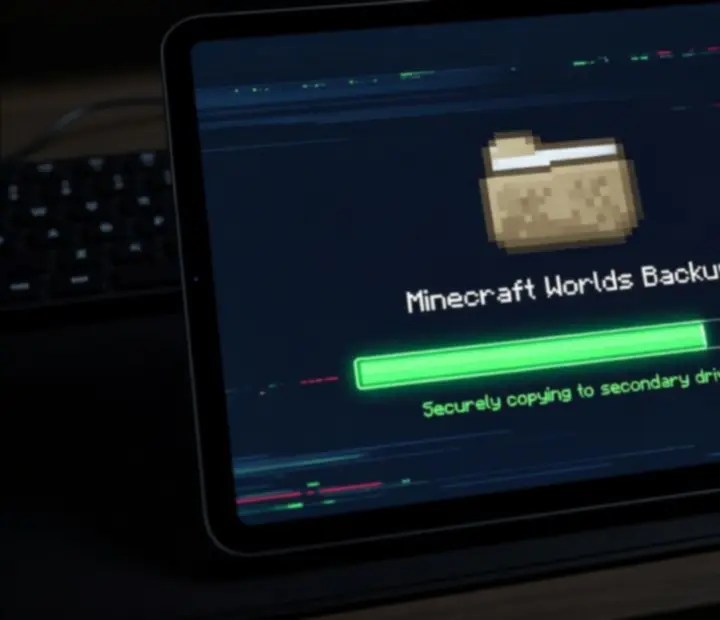
Treat your horror worlds like important save files in any survival game. Before adding or removing large addons, capture a snapshot of the current state.
- Export your key worlds weekly or before every major addon change.
- Store backups in cloud storage or an external drive for extra safety.
- Label backups with both the date and the main horror mods in use.
Track Minecraft PE updates and mod versions
Game updates can change how Bedrock interprets behavior and resource data. Knowing which combination you are running helps when troubleshooting or asking the community for help.
- Note your Minecraft version whenever you install a new major addon like Verity.
- Keep a small text file summarizing which mods are active in each horror world.
- When updating mods, keep the previous version’s file until you confirm stability.
This light documentation makes it far easier to roll back from a problematic update, or to recreate a favorite horror setup later.
Step 9
Restoring and Testing Mods In-Game
After installing Verity Mod or a set of horror addons, test them in controlled conditions. If anything goes wrong, backups let you restore your world and try a different configuration.
Verifying a successful install
When you first load a horror-enabled world, confirm that the mod actually took effect before investing more time.
- Open world settings and check that both behavior and resource packs are listed as active.
- Look for any new UI indicators, menus, or status messages introduced by the addon.
- Explore at night or in areas where the mod is expected to spawn entities or events.
If Verity Mod is working, you should encounter its AI companion behavior or related systems in the environments where it is designed to appear.
Restoring from backups
If a horror addon destabilizes your world or alters the experience too dramatically, revert to your clean snapshot:
- Import the backup world file into Minecraft Bedrock.
- Give it a distinct name (for example, World-Pre-Horror-Restore).
- Disable or remove problematic addons before enabling them again on the restored world.
Using this cycle—install, test, evaluate, restore if needed—lets you fine-tune a horror setup that fits your device, your playstyle, and your tolerance for scares.
Step 10
Installation Support and Community Resources
You do not have to configure horror addons alone. The wider Minecraft Bedrock community shares guides, troubleshooting tips, and recommended setups for intense but stable experiences.
Where to learn more
For deeper dives into Verity Mod and other horror packs curated by Art Mosaicly, explore the site’s editorial coverage and supporting pages.
- Verity Mod page – Detailed breakdown of the AI companion concept and gameplay expectations.
- Horror Mods archive – Additional addons like Man from the Fog, Cave Dweller, Mimicer, SCP, and more.
- FAQ – Answers to common installation, conflict, and compatibility questions.
You can also follow the News section for trends, update notes, and emerging horror challenges built for Bedrock.
Getting help with specific issues
When you face stubborn problems—whether missing entities, crashes, or unexplained behavior—provide clear details when asking for help:
- Your Minecraft Bedrock version.
- The horror addons currently active in the world.
- Any error messages shown during import or world load.
Use this information when reaching out to community forums, creator channels, or sending questions through the site’s contact page.